 SnapText guide
How to Convert Handwriting to Text on iPhone (Notes, Letters and Whiteboards)
By Muhammad Shahid Khan · · 4 min read
Quick answer
On iPhone you can convert handwriting with Live Text in Photos or the Camera, with Scan Text in any text field, or with an OCR app like SnapText for whole pages. Neat, printed-style handwriting in dark ink converts well; joined-up or rushed writing needs checking. Good light, a flat page and one section at a time make the biggest difference.
SnapTextScan Images, Extract Text · Free on the App StoreDownload free →| Built-in options | Live Text and Scan Text (iOS 15+, iPhone XS or newer) |
|---|---|
| Whole pages | An OCR app such as SnapText |
| Works best on | Neat, separate letters in dark ink |
| Hardest | Joined-up writing, faint pencil, crowded pages |
| Always | Proofread names and numbers |
Handwritten notes are fast to make and slow to reuse. Turning them into text means you can search them, paste them into an email or a document, and stop retyping. iPhones are good at this now, as long as you know which tool to use and how to give it a readable page.
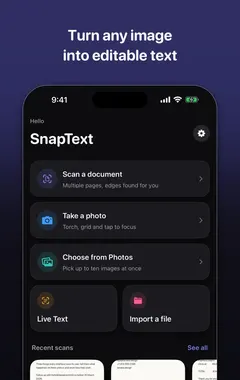
I build SnapText - Image to Text, a free iPhone OCR app that reads text on your device, and the screenshots in this guide come from it. If you want to try each step as you read, get SnapText on the App Store.
Method 1: Live Text in Photos or the Camera
- Take a photo of the page, or point the Camera at it.
- Tap the Live Text button (lines inside a frame).
- Touch and hold to select the text, then tap Copy.
Best for a few lines, such as a phone number on a sticky note. If nothing selects, see Live Text not working.
Method 2: Scan Text straight into a text field
In many apps, such as Notes, Mail or Messages, tap in a text field, then tap it again and choose Scan Text (or the scan icon on the keyboard). Point the camera at the handwriting and tap Insert. The text goes straight where you are typing.
Method 3: An OCR app for full pages
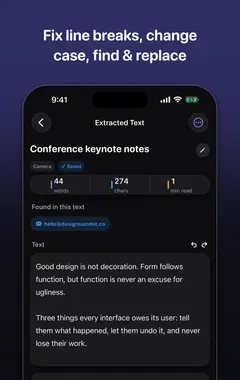
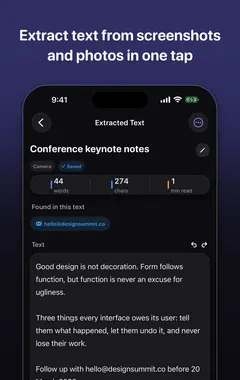
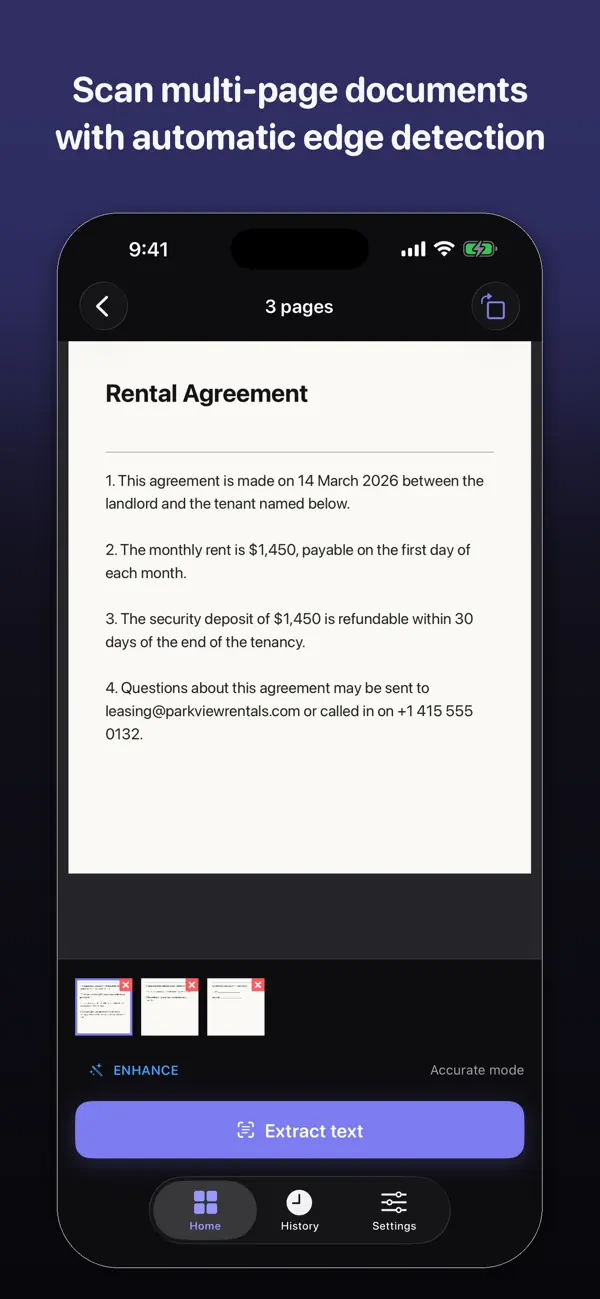
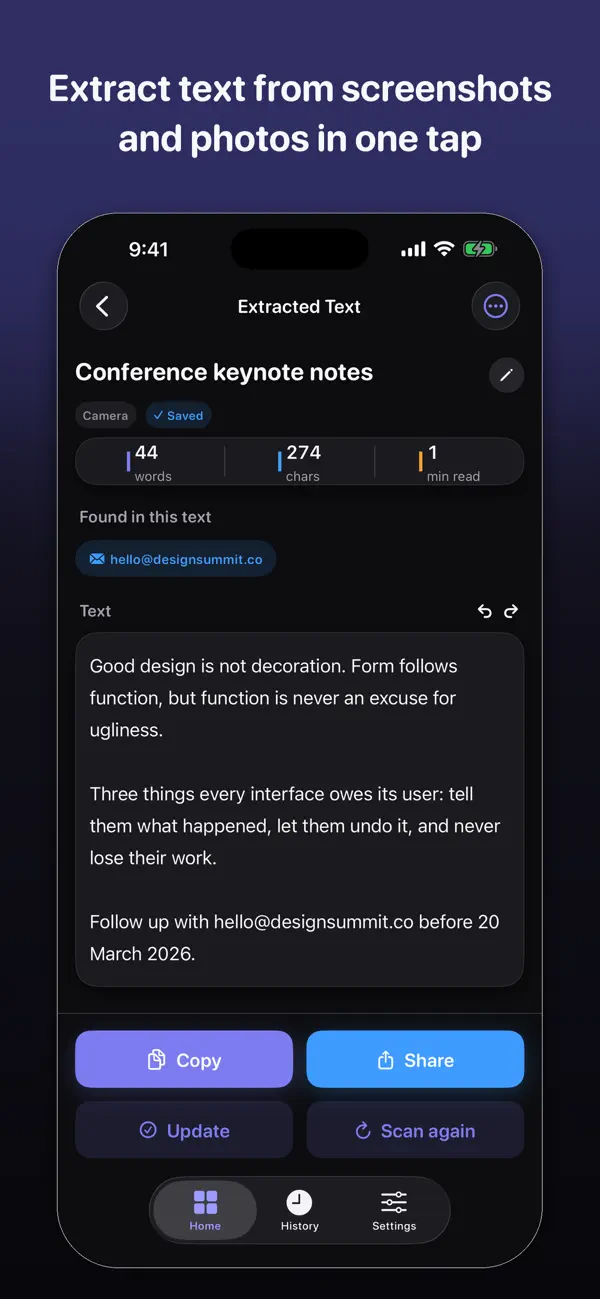
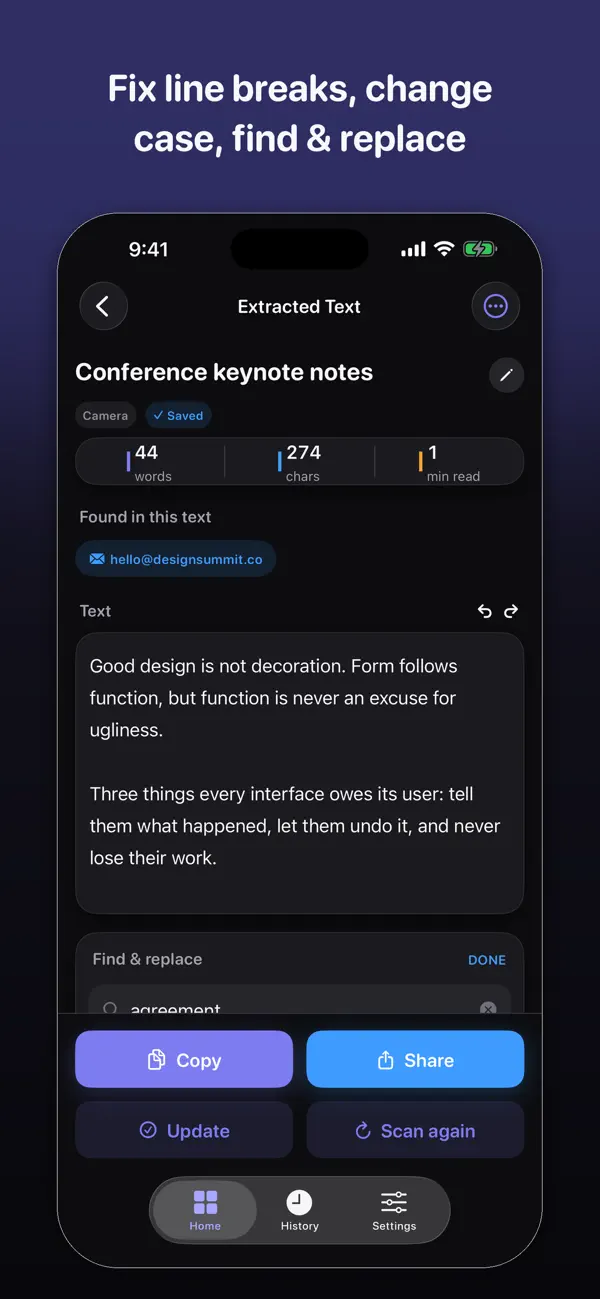
For a whole page, several pages, or a whiteboard full of notes, an OCR app is quicker. In SnapText, take or import a photo, and it extracts all the text at once. You can then fix any mistakes, remove line breaks, and copy, share or save the result. Scans are kept in a searchable history.
How do I get more accurate handwriting recognition?
- Write clearly if you know you will scan it: separate letters, a dark pen and space between lines.
- Use good, even light. Shadows across the page are the biggest cause of missed words.
- Hold the phone flat and parallel to the page.
- Fill the frame with the text, and scan one section at a time on a crowded page.
- Avoid faint pencil and ruled paper with dark lines where possible.
- For whiteboards, stand straight in front, avoid glare from the windows, and wipe away old smudges first.
More photo tips in 10 tips for more accurate OCR.
Which handwriting converts badly?
- Joined-up or cursive writing, especially when letters run into each other.
- Mixed text and diagrams, where arrows and boxes get read as letters.
- Numbers and names: 1 and 7, 0 and O, 5 and S are often swapped. Always check them.
- Languages that Apple's recognition does not support.
What can I do with the converted text?
- Paste it into Notes, Pages, Word or Google Docs.
- Turn lecture notes into revision flashcards. See OCR for students.
- Send meeting notes by email straight after the meeting.
- Keep a searchable archive of handwritten recipes, letters or diaries.
Is it private?
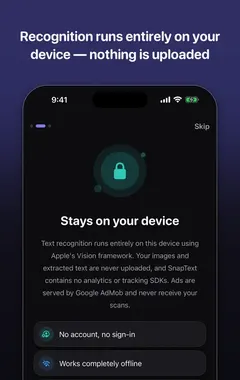
Live Text, Scan Text and SnapText all use Apple's on-device recognition, so your handwriting is not uploaded. That matters for diaries, medical notes or anything personal.
How SnapText helps
- Extract all the text at once from a photo, screenshot, scanned document or the camera.
- Edit the result straight away, and clean up line breaks and spacing in one tap.
- Detect links, emails and phone numbers so you can use them directly.
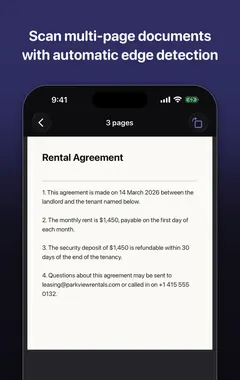
- Scan several pages and keep them together.
- Search your saved scans later, and copy, share or export the text.
- Private by design: on-device recognition, no account, no tracking, and core OCR works offline.
Download SnapText free on the App Store and turn any image into text you can use.
Frequently asked questions
Can iPhone convert handwriting to text?
Yes. Live Text, Scan Text and OCR apps like SnapText can read neat handwriting on iPhone XS, XR or newer.
How do I scan handwritten notes to text on iPhone?
Photograph the page and use Live Text to copy it, or use an OCR app like SnapText to extract the whole page at once.
What is Scan Text on iPhone?
An option in text fields that lets you point the camera at text and insert it directly where you are typing.
How accurate is handwriting recognition on iPhone?
Very good for neat, separate letters in dark ink. Joined-up or rushed writing needs more corrections.
Can iPhone read cursive?
Sometimes, if it is neat. Accuracy drops a lot with joined-up writing.
How do I convert a whiteboard to text?
Photograph it straight on without glare, then use Live Text or an OCR app to extract the text.
Why are numbers wrong after scanning handwriting?
Characters like 1 and 7, 0 and O, and 5 and S look alike. Always proofread numbers and names.
Does handwriting conversion work offline?
Yes. Live Text, Scan Text and SnapText run on the device.
Can I search my handwritten notes after converting them?
Yes. Once converted, the text is searchable, and SnapText keeps a searchable history of your scans.
Is my handwriting uploaded anywhere?
Not with Live Text, Scan Text or SnapText, which all use Apple’s on-device recognition.
Can SnapText read handwriting?
Yes, neat handwriting usually works well. Expect to correct a few words in rushed or joined-up writing.
SnapTextDownload free