 SnapText guide
Live Text Not Working on iPhone? 9 Fixes (and What to Use Instead)
By Muhammad Shahid Khan · · 5 min read
Quick answer
Live Text needs an iPhone XS, XR or newer on iOS 15 or later. If it is not working, turn it on in Settings > General > Language & Region > Live Text, add the text’s language to your preferred languages, and turn on Show Detected Text in Camera settings. Small, blurred or decorative text often fails. An OCR app such as SnapText can extract the whole image at once when Live Text will not.
SnapTextScan Images, Extract Text · Free on the App StoreDownload free →| Supported iPhones | iPhone XS, XR and newer |
|---|---|
| iOS needed | iOS 15 or later |
| Main switch | Settings > General > Language & Region > Live Text |
| Camera switch | Settings > Camera > Show Detected Text |
| Common cause | Text too small, blurred or in an unsupported language |
Live Text is one of the most useful iPhone features: touch and hold text in a photo, and you can copy it. When it works. When it does not, there is no error message, just a photo where nothing will select. Here are the reasons, roughly in the order they happen, and what to do about each.
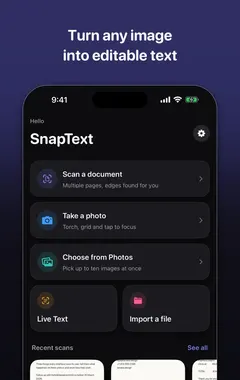
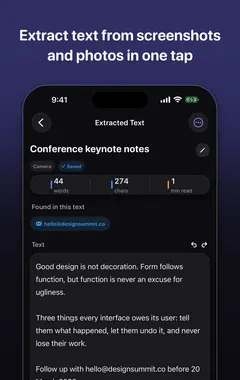
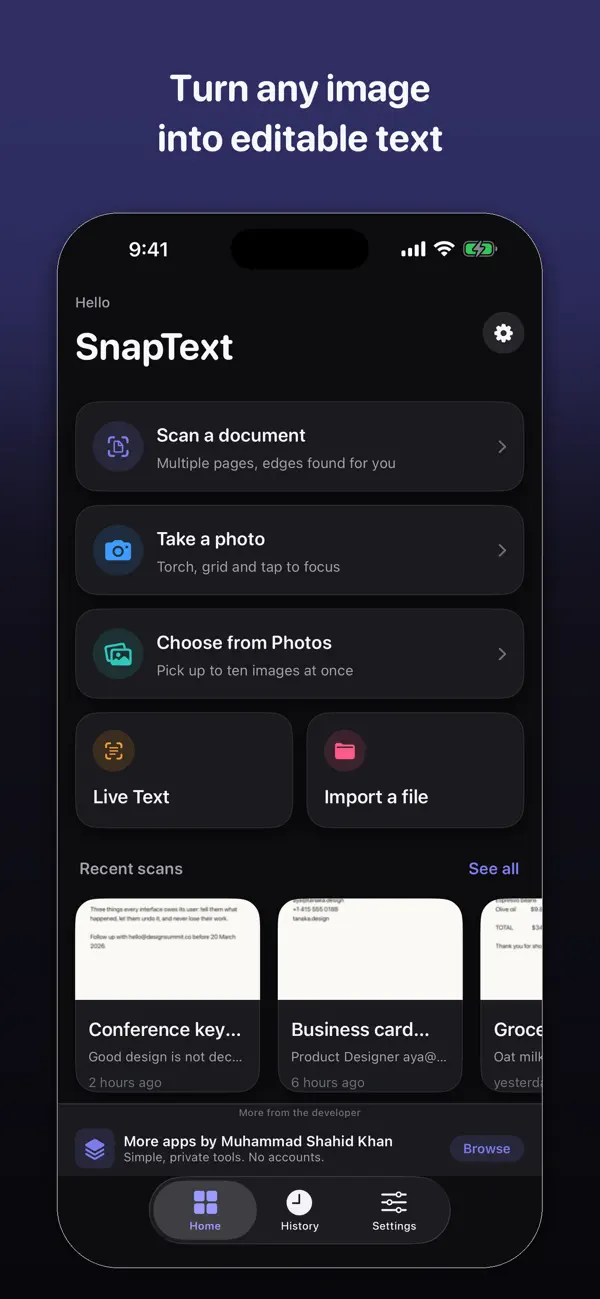
I build SnapText - Image to Text, a free iPhone OCR app that reads text on your device, and the screenshots in this guide come from it. If you want to try each step as you read, get SnapText on the App Store.
Which iPhones support Live Text?
Live Text needs the Neural Engine in the A12 Bionic chip or newer, so it works on iPhone XS, iPhone XS Max, iPhone XR and every later model, running iOS 15 or later. On an iPhone X, 8 or older, Live Text is not available at all, and an OCR app is the only option.
How do I fix Live Text not working?
- Turn Live Text on. Go to Settings > General > Language & Region and make sure Live Text is switched on.
- Add the language. Live Text only reads languages it supports, and works best when the language is in your Preferred Languages list on the same screen.
- Turn on detection in the Camera. Settings > Camera > Show Detected Text.
- Look for the Live Text button. In Photos, the icon with lines inside a frame appears in the corner when text is detected. If it is missing, the text was not recognised.
- Zoom in, then screenshot. Small text is the most common cause. Zoom until the text is large, take a screenshot, and try again on that.
- Use a sharper photo. Blur, glare, shadows and steep angles all stop recognition.
- Crop out busy backgrounds. Text over pictures or patterns is often skipped.
- Update iOS and restart the iPhone. Each iOS version improves recognition and adds languages.
- Check the app. Live Text works in Photos, Camera, Safari, Quick Look and many apps, but not every third-party app supports it.
Why does Live Text work on some photos but not others?
- Decorative or handwritten text: script fonts, logos and rushed handwriting are harder to read.
- Very small text: footnotes, terms and conditions, and text in the background of a photo.
- Unsupported languages: Live Text covers a limited set of languages, which varies by iOS version.
- Text on screens: photos of a monitor can have moiré patterns. Take a screenshot instead if you can.
Is there a faster way to get all the text at once?
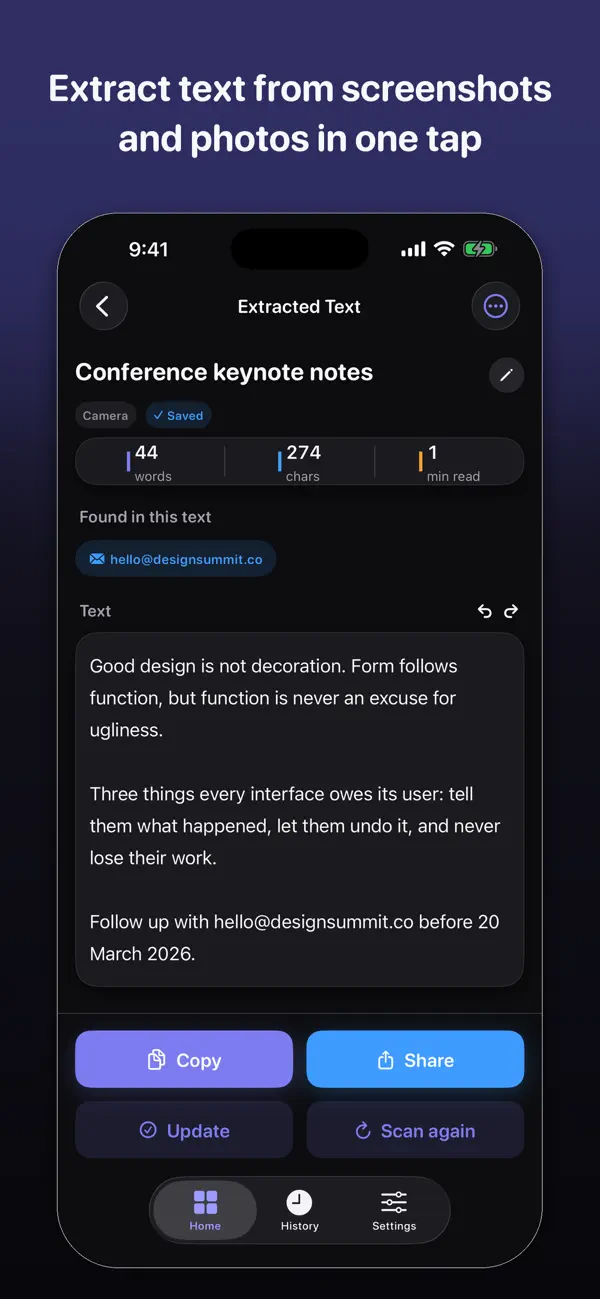
Live Text is built for grabbing a phrase. Selecting a whole page, a long screenshot or several photos with handles is slow, and it is easy to miss a line. An OCR app reads the entire image in one go and gives you editable text you can clean up and save. See how to extract text from an image on iPhone for all three methods side by side.
Does an OCR app work when Live Text does not?
Often, yes, because you can adjust what it reads. You can crop to the text, scan a page with edge detection, or work from a screenshot. But no OCR can read text that is not visible in the image: if the photo is blurred, retake it. My 10 tips for more accurate OCR cover how to get a photo that works first time.
Is Live Text private?
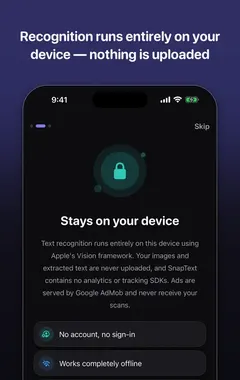
Yes. Live Text runs on your iPhone, not in the cloud. SnapText also uses Apple's on-device text recognition, so images and text stay on your phone. More in private OCR on iPhone.
How SnapText helps
- Extract all the text at once from a photo, screenshot, scanned document or the camera.
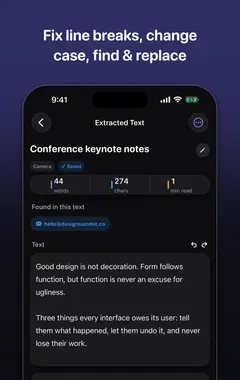
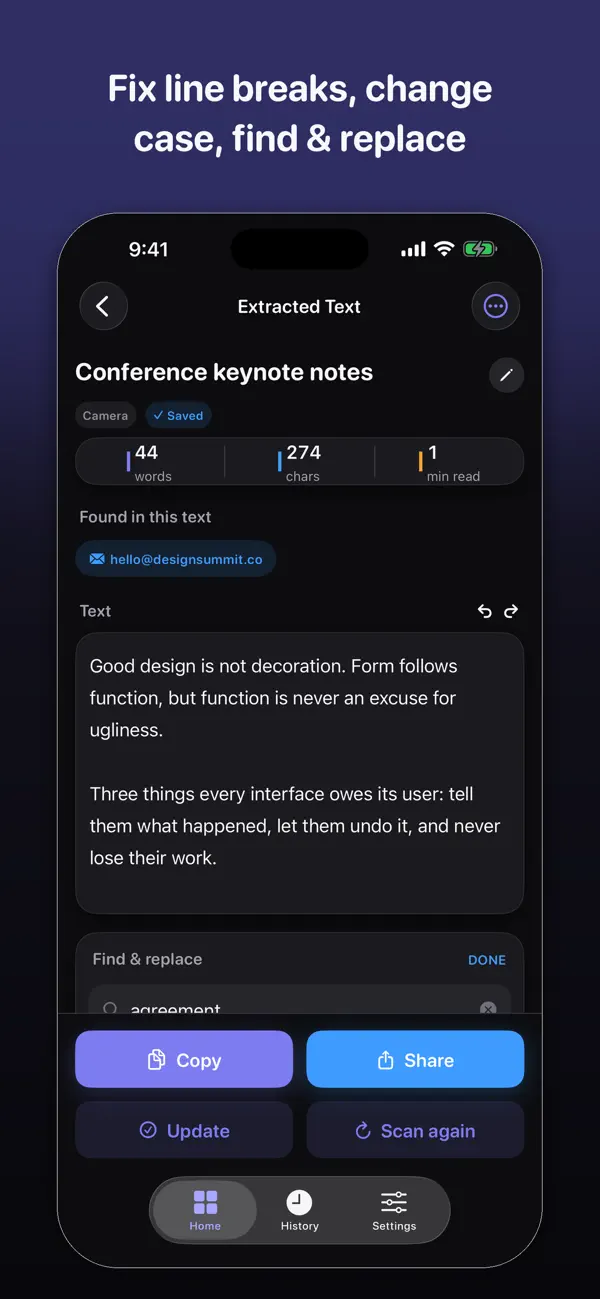
- Edit the result straight away, and clean up line breaks and spacing in one tap.
- Detect links, emails and phone numbers so you can use them directly.
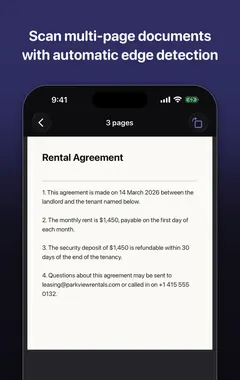
- Scan several pages and keep them together.
- Search your saved scans later, and copy, share or export the text.
- Private by design: on-device recognition, no account, no tracking, and core OCR works offline.
Download SnapText free on the App Store and turn any image into text you can use.
Frequently asked questions
Why is Live Text not working on my iPhone?
Your iPhone may be too old (it needs an XS, XR or newer on iOS 15+), Live Text may be switched off, the language may not be supported, or the text may be too small or blurred.
How do I turn on Live Text?
Go to Settings > General > Language & Region and turn on Live Text. For the Camera, turn on Settings > Camera > Show Detected Text.
Which iPhones have Live Text?
iPhone XS, XS Max, XR and all later models, on iOS 15 or later.
Why can’t I select text in a photo on iPhone?
Live Text did not recognise it. Zoom in and take a screenshot, use a sharper photo, or crop out busy backgrounds.
Where is the Live Text button in Photos?
An icon of lines inside a frame appears in the corner of the photo when text is detected.
Does Live Text work on iPhone X?
No. Live Text needs an A12 Bionic chip or newer, which means iPhone XS, XR or later.
Does Live Text work offline?
Yes. Recognition runs on the iPhone.
Why does Live Text not recognise my language?
Live Text supports a limited set of languages that varies by iOS version. Add the language to Preferred Languages and update iOS.
Can Live Text read handwriting?
Neat handwriting often works. Rushed or joined-up writing is much less reliable.
What can I use instead of Live Text?
An OCR app like SnapText, which extracts all the text from a photo, screenshot or scan at once, on the device.
Does SnapText work on older iPhones?
SnapText works on any iPhone that can install it from the App Store, using Apple’s on-device recognition.
SnapTextDownload free