 SnapText guide
How to Scan a Document to Editable Text on iPhone
By Muhammad Shahid Khan · · 5 min read
Quick answer
A normal iPhone scan (from Notes or Files) creates an image or PDF of the page. To get editable text, the scan also needs OCR. With SnapText, scan the document with the camera, let it recognise the text on your device, clean up line breaks, then copy, share or export the text.
SnapTextScan Images, Extract Text · Free on the App StoreDownload free →There is an important difference between scanning a document and getting its text. A scan is a picture of a page. Editable text is something you can search, copy, edit and paste. To go from one to the other, you need OCR.
I build SnapText - Image to Text, a free iPhone OCR app that reads text on your device, and the screenshots in this guide come from it. If you want to try each step as you read, get SnapText on the App Store.
Scanning vs OCR: what is the difference?
- Scanning captures the page as an image or PDF. The built-in scanners in the Notes and Files apps do this well, with automatic edge detection and perspective correction.
- OCR (optical character recognition) reads the letters in that image and turns them into text you can edit.
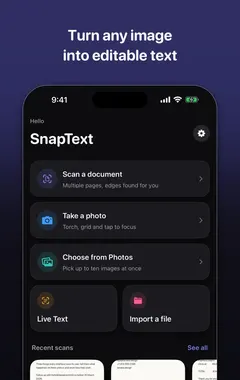
SnapText does both: it scans the document and then extracts the text on your device.
How do I prepare the page for a good scan?
- Flatten it. Curves and folds distort letters near the edges.
- Use even light. Daylight near a window is ideal. Avoid your own shadow over the page.
- Avoid glare on glossy paper by tilting the page slightly away from the light.
- Use a contrasting background. A white page on a dark table helps edge detection.
- Fill the frame with the page, and hold the phone parallel to it.
Can I scan multiple pages?
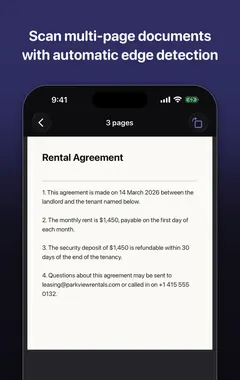
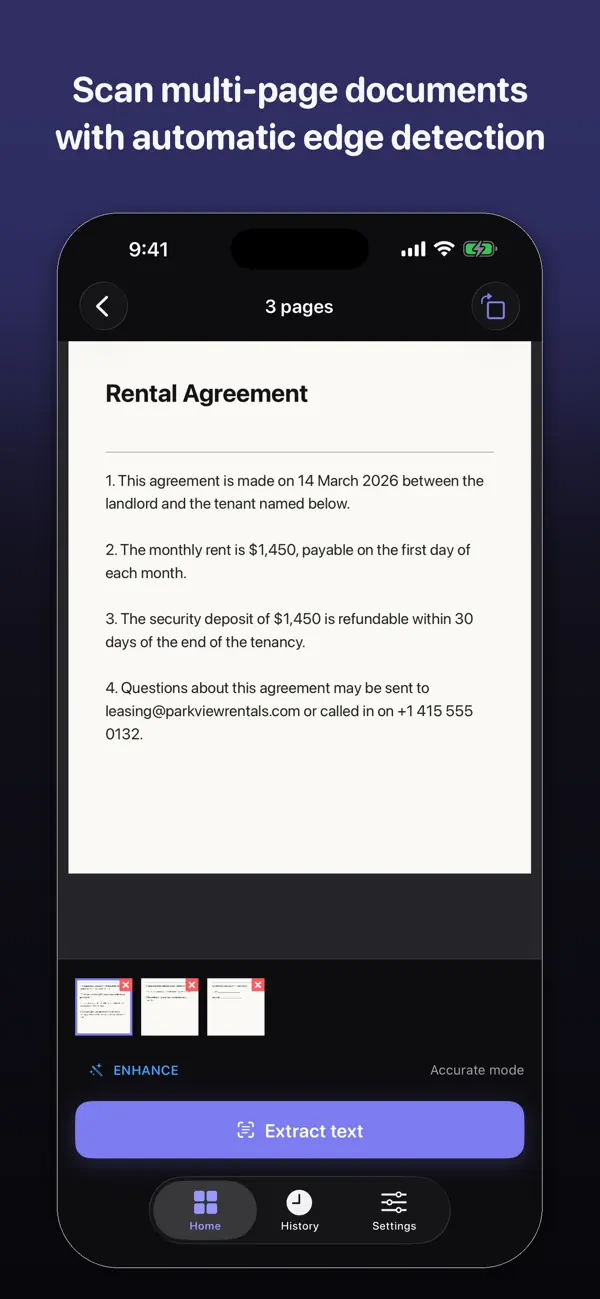
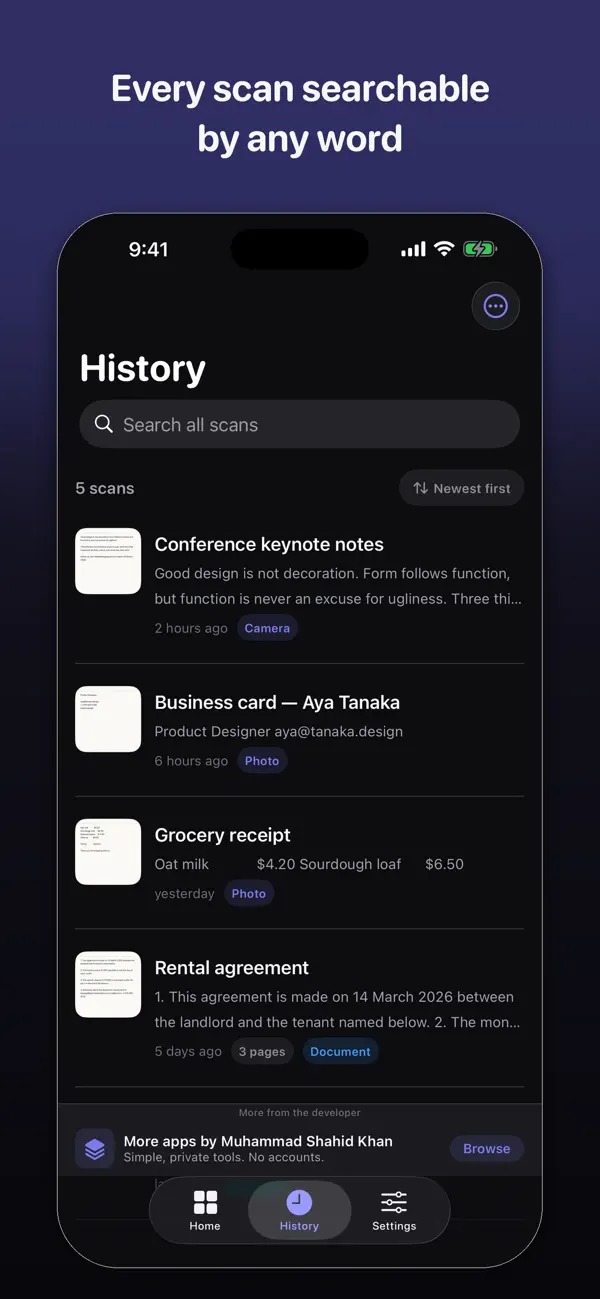
Yes. SnapText can scan multiple pages and documents, so a letter, contract or set of notes stays together. Your scans are saved, and you can search them later to find a document by any word in it.
How do I clean up the extracted text?
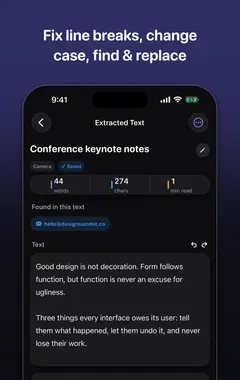
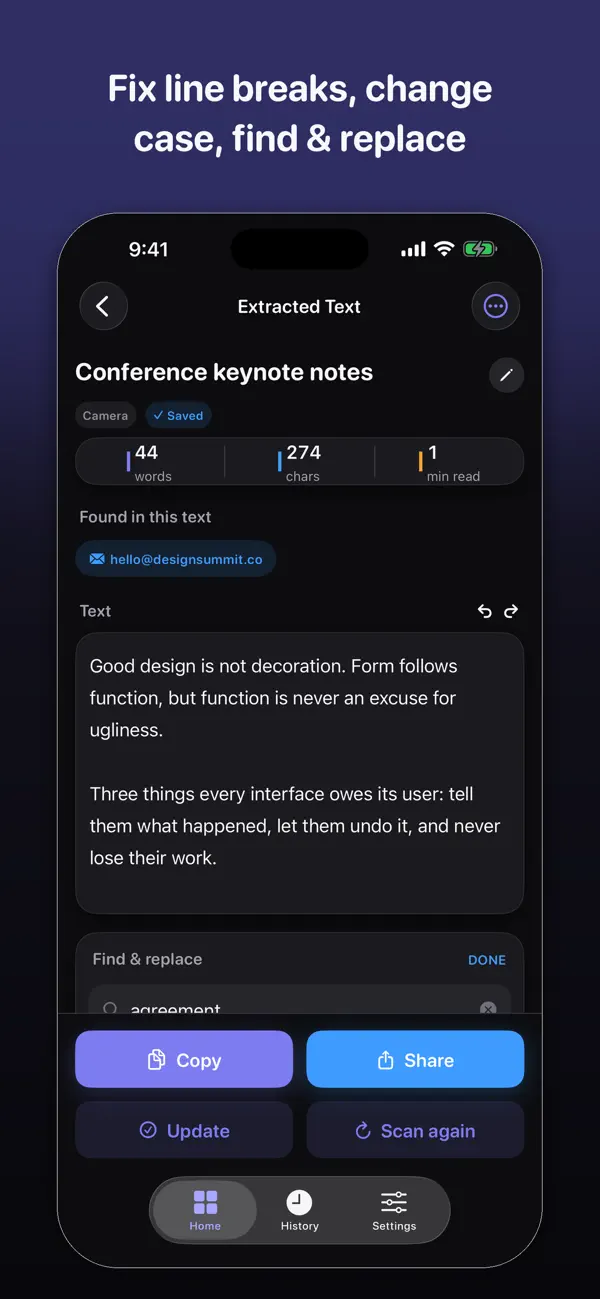
OCR copies line breaks exactly where they appear on the page. When you paste that text into an email or document, every line ends early. SnapText's cleanup tools remove unwanted line breaks and tidy formatting, so paragraphs flow normally.
Always read the text through once before you rely on it, especially numbers, names and addresses. OCR is very accurate on clear printed text, but a single misread digit in an account number matters.
What can I do with the text?
- Copy it into Notes, Pages, Word or Google Docs to edit.
- Share it by Mail, Messages or WhatsApp.
- Export it for reuse elsewhere.
- Tap detected links, emails or phone numbers to use them directly.
What kinds of documents work best?
Printed documents with clear fonts give the best results: letters, invoices, receipts, book pages, printed forms and notices. Handwriting depends heavily on how neat it is. Tables are recognised as text, but complex layouts may need some tidying after extraction.
Is it safe to scan private documents?
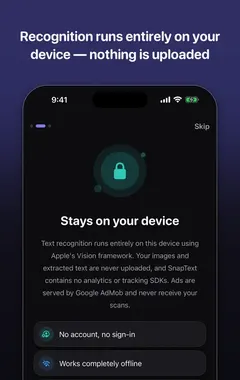
With SnapText, recognition happens on your iPhone using Apple's Vision framework. There is no account, and no external OCR or AI service sees your documents. Your images and text stay on your device unless you share or export them. More on this in private OCR on iPhone.
More guides you may find useful:
- How to Convert Handwriting to Text on iPhone (Notes, Letters and Whiteboards)
- How to Remove Line Breaks From Copied or Scanned Text (iPhone, Mac and Web)
- OCR for Students: Turn Lecture Slides, Textbooks and Notes Into Text on iPhone
How SnapText helps
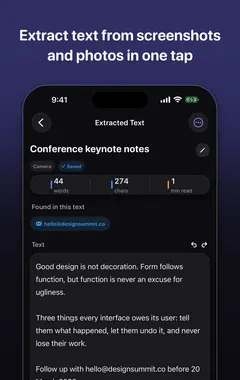
- Extract all the text at once from a photo, screenshot, scanned document or the camera.
- Edit the result straight away, and clean up line breaks and spacing in one tap.
- Detect links, emails and phone numbers so you can use them directly.
- Scan several pages and keep them together.
- Search your saved scans later, and copy, share or export the text.
- Private by design: on-device recognition, no account, no tracking, and core OCR works offline.
Download SnapText free on the App Store and turn any image into text you can use.
For more accurate results, see 10 tips for more accurate OCR.
How to scan a document to editable text on iPhone: step by step
- Prepare the page. Lay the document flat in good, even light, on a dark contrasting surface.
- Scan it in SnapText. Open SnapText and use the scan option to capture the page with the camera.
- Add more pages. Scan the remaining pages to keep a multi-page document together.
- Check and clean up. Read through the extracted text, fix any errors and remove broken line breaks.
- Export. Copy the text, share it to Notes, Mail or another app, or export it.
Frequently asked questions
How do I scan a document to text on iPhone?
Use an OCR app like SnapText: scan the page with the camera, let it recognise the text, clean up line breaks, then copy, share or export the text.
Does the Notes app scanner create editable text?
The Notes and Files scanners create an image or PDF of the page. To get editable text you can paste and edit, you need OCR, such as Live Text or an app like SnapText.
Can I scan multiple pages on iPhone?
Yes. SnapText can scan multiple pages and documents, and keeps your scans in a searchable history.
Can OCR read handwriting?
Neat handwriting can often be recognised, but accuracy varies a lot more than with printed text.
Why does scanned text have line breaks in the wrong places?
OCR keeps the line breaks from the page. SnapText’s cleanup tools remove them so paragraphs flow normally.
How do I get a better scan?
Flatten the page, use even light without glare, place it on a contrasting background and hold the phone parallel to it.
Is it safe to scan confidential documents with SnapText?
SnapText recognises text on your device and does not send images to external OCR or AI services. Your documents stay on your iPhone unless you share them.
Can I search my old scans?
Yes. SnapText lets you search your saved scans.
Can I scan receipts and invoices?
Yes. Printed receipts and invoices work well. Check numbers carefully after extraction.
Does it work without internet?
Yes. SnapText’s core OCR features work offline.
Can I export the text to Word or Google Docs?
Yes. Copy or share the extracted text into any app, including Word, Pages or Google Docs.
SnapTextDownload free