 Picture to Text guide
How to Extract Links, Emails and Phone Numbers From an Image on Mac
By Muhammad Shahid Khan · · 4 min read
Quick answer
Drop the image or PDF into Picture to Text, or capture part of the screen with Shift-Command-2. Along with the text, it detects links, email addresses, phone numbers, QR codes and barcodes, and lets you open or copy each one with one click. That saves retyping long URLs and avoids mistakes in addresses and numbers. Check links before you open them.
Picture to TextCopy Text from Images & PDFs · Free on the Mac App StoreDownload free →| Detects | Links, emails, phone numbers, QR codes, barcodes |
|---|---|
| Sources | Images, screenshots, PDFs, any screen area |
| Actions | Open or copy with one click |
| Common uses | Business cards, posters, slides, invoices |
| Safety | Check the domain before opening a link |
A long URL on a conference slide, an email address on a poster, a phone number in a screenshot, a QR code in a PDF. Retyping them is slow, and one wrong character means a dead link or an email that bounces. Your Mac can find them for you.
I build Picture to Text - ExtractText, a free Mac OCR app that reads images, PDFs and any area of the screen on your Mac, and the screenshots here come from it. If you want to try it as you read, get Picture to Text on the Mac App Store.
How do I extract links and contact details from an image?
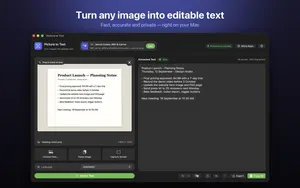
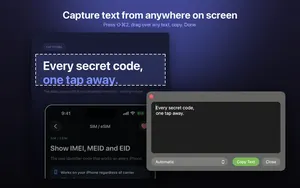
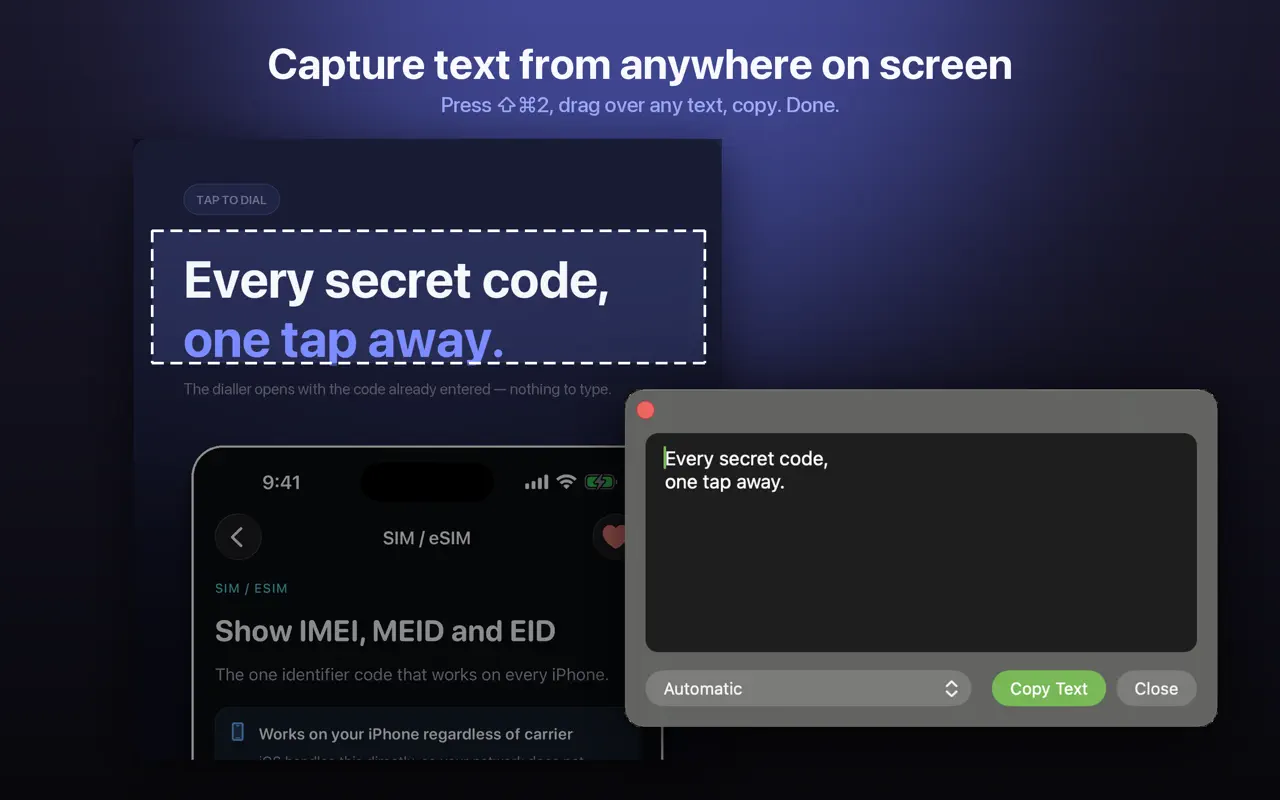
- Open Picture to Text and drag in the image or PDF, paste an image, or press Shift-Command-2 to capture part of the screen.
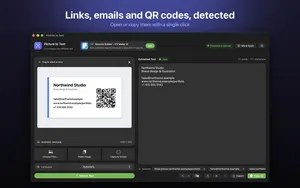
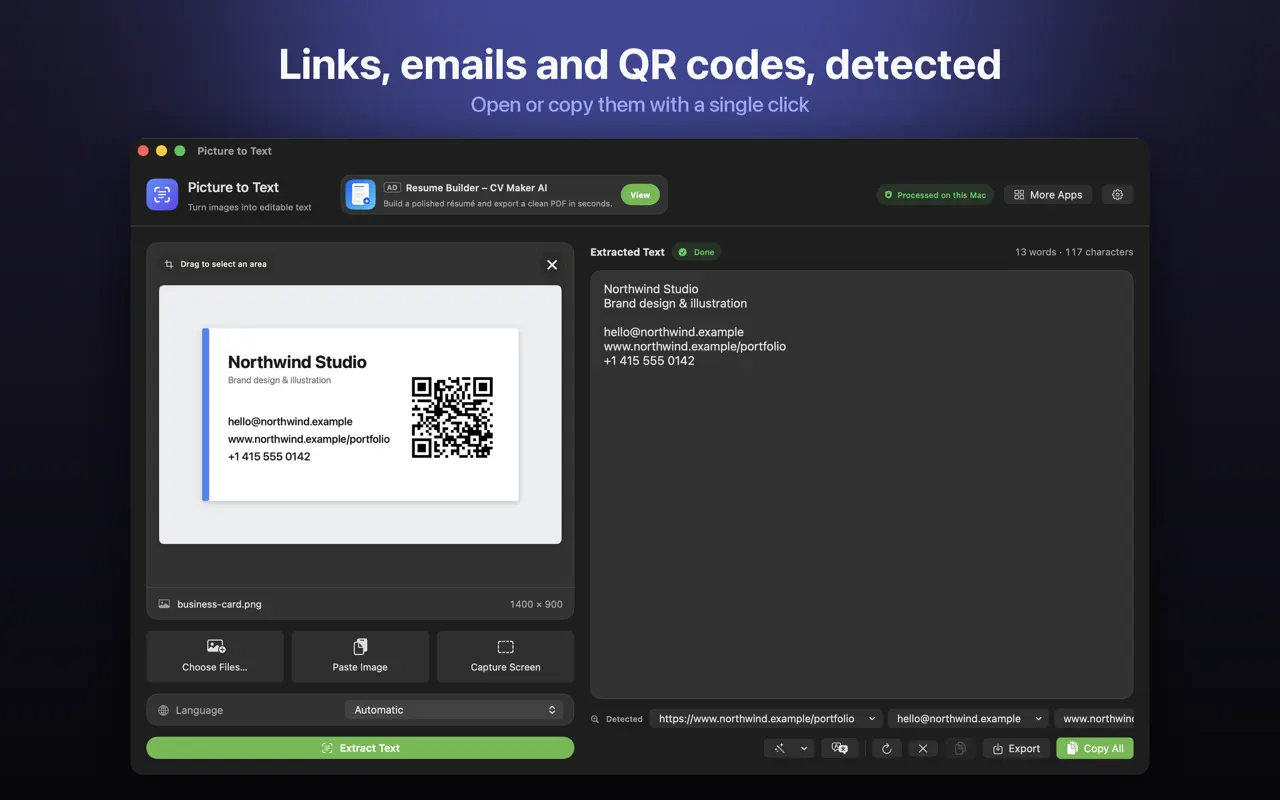
- The text appears, and links, emails, phone numbers and codes are listed as detected items.
- Click to open a link or email address, or copy any item.
What can it detect?
| Item | Example source | What you can do |
|---|---|---|
| Links (URLs) | Slides, posters, screenshots, video frames | Open in your browser or copy |
| Email addresses | Business cards, flyers, PDFs | Open in Mail or copy |
| Phone numbers | Shop signs, adverts, letters | Copy |
| QR codes | Tickets, menus, emails, PDFs | Open the link or copy its content |
| Barcodes | Product photos, labels | Copy the number |
What are the most useful real-world uses?
- Business cards: photograph a stack after an event, then copy each email and number into Contacts.
- Conference slides: grab the link to the slides or the speaker's site.
- Posters and flyers: sign-up links and contact numbers.
- Invoices and PDFs: payment portal links and reference emails.
- QR codes on screen: codes in emails or PDFs that your phone cannot easily scan. See scan a QR code on Mac.

Is it safe to open links found in images?
Links in images and QR codes are a common phishing trick, because you cannot hover over them to see the destination. Before opening one:
- Read the domain carefully. Look for misspellings like
paypa1.com. - Be wary of shortened links and codes in unexpected emails.
- Never enter passwords on a page reached from an image or QR code. Go to the site directly instead.
Is my data private?
Yes. Recognition and detection run on your Mac with Apple's Vision framework. Images are not uploaded, there is no account and no tracking, and it works offline. For extracting the rest of the text, see how to extract text from an image on Mac.
How Picture to Text helps
- Drop in images or PDFs, paste from the clipboard, or choose several files at once.
- Capture any area of the screen with Shift-Command-2 or from the menu bar.
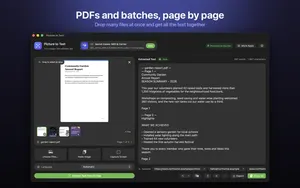
- Read multi-page scanned PDFs, with each page labelled in the result.
- 30+ languages, including Urdu, Persian, Pashto, Sindhi and Punjabi in beta.
- Clean Up, Detect and Translate: join broken lines, open links, emails, phone numbers, QR codes and barcodes, and translate on macOS 26 or later.
- Private: Apple's on-device Vision framework, no uploads, no account, no tracking, and it works offline.
Download Picture to Text free on the Mac App Store and copy text from anything on your screen.
Frequently asked questions
How do I copy a link from an image on Mac?
Drop the image into Picture to Text or capture it with Shift-Command-2. Detected links can be opened or copied with one click.
Can I extract an email address from a picture?
Yes. Picture to Text detects email addresses in images and PDFs and lets you open or copy them with one click.
How do I get a phone number from a screenshot?
Capture or drop in the screenshot, and the phone number appears as a detected item you can copy.
Can I scan a QR code on my Mac screen?
Yes. Capture the area with the code and Picture to Text reads it, including codes in emails and PDFs.
Can it read barcodes?
Yes. Detected barcodes can be copied.
How do I turn a business card photo into a contact?
Extract the text and detected email and phone number, then copy them into Contacts.
Is it safe to open links from QR codes?
Check the domain carefully first, and never enter passwords on a page reached from a QR code.
Does detection work on PDFs?
Yes. Links, emails, phone numbers and codes are detected in PDFs as well as images.
Does it work offline?
Yes. Detection runs on your Mac.
Are my images uploaded?
No. Picture to Text uses Apple’s on-device Vision framework with no uploads or accounts.
Which app detects links in images on Mac?
Picture to Text detects links, emails, phone numbers, QR codes and barcodes alongside the extracted text.
Picture to TextDownload free