 Picture to Text guide
How to Extract Text From an Image on Mac (Every Method)
By Muhammad Shahid Khan · · 4 min read
Quick answer
For a single image, open it in Preview or Photos, hover over the text and drag to select it with Live Text, then press Command-C. For batches of images, multi-page PDFs, part of the screen or languages Live Text does not support, use Picture to Text: drop files in, or press Shift-Command-2 to capture any area, and it extracts the text on your Mac.
Picture to TextCopy Text from Images & PDFs · Free on the Mac App StoreDownload free →macOS can read text in images, but the built-in options are designed for one image at a time. Here is every way to get text out of an image on a Mac, and when each one makes sense.
Method 1: Live Text in Preview
On macOS Monterey and later, Live Text works in Preview:
- Open the image in Preview.
- Move the pointer over the text until it changes to a text cursor.
- Drag to select the text, then press Command-C.
This also works in the Photos app and in Quick Look (press Space on a file in Finder).
Limits: one image at a time, manual selection, and only the languages Live Text supports.
Method 2: Live Text in Safari
You can also select text inside images on web pages in Safari, the same way. It is useful for infographics or a screenshot someone posted.
Method 3: Picture to Text
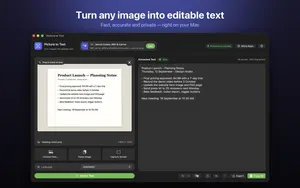
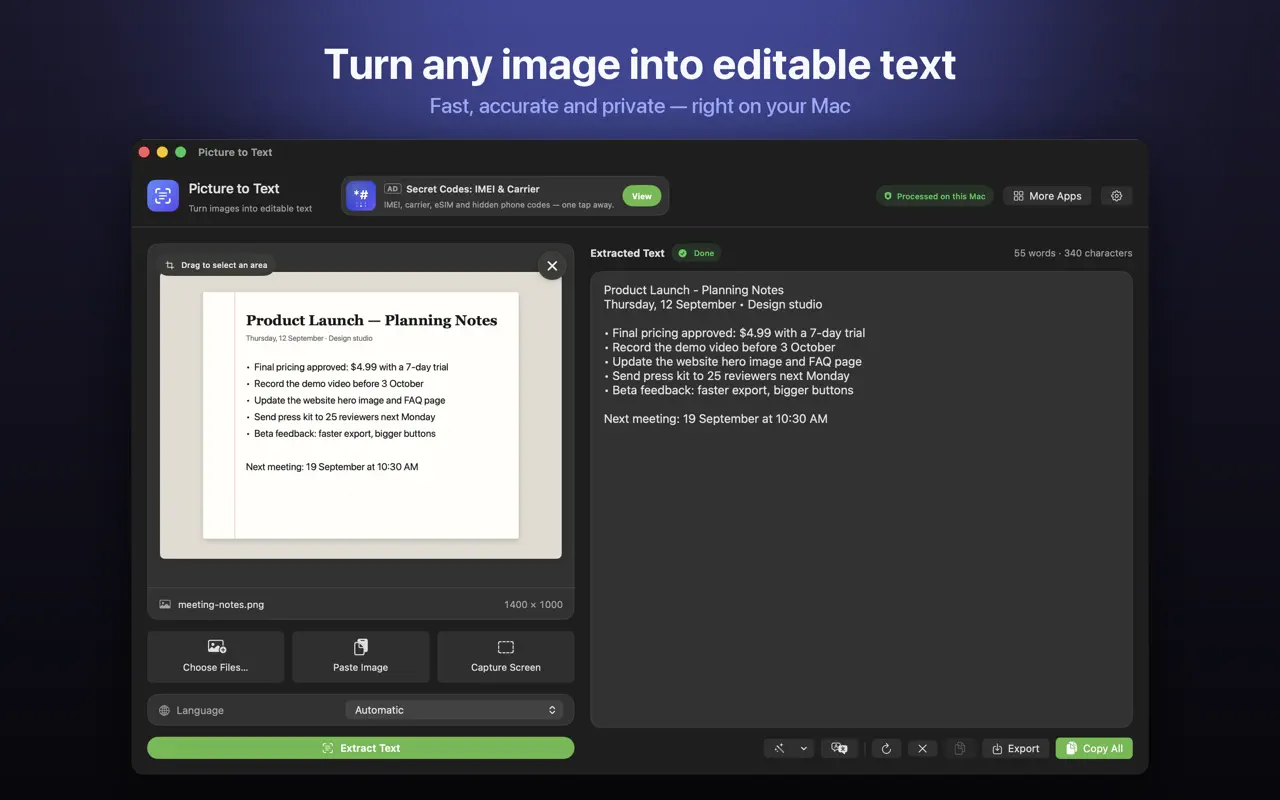
Picture to Text is a Mac app built for getting text out of images, screenshots and PDFs in bulk, and for anything on your screen:
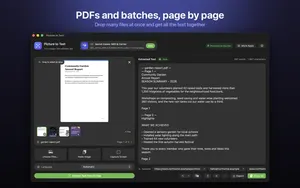
- Drag and drop images or PDFs from Finder.
- Paste an image from the clipboard.
- Choose several files at once and get all the text together.
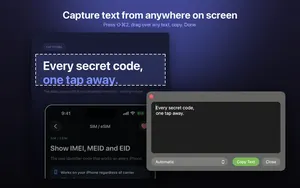
- Capture any area of the screen with Shift-Command-2, or from the menu bar.
- Import multi-page PDFs, including scanned documents, with each page clearly labelled.
- Drag over part of an image to extract only that area.
Which method should I use?
| You want to… | Best method |
|---|---|
| Copy a line from one image | Live Text in Preview |
| Copy text from an image on a web page | Live Text in Safari |
| Get text from 20 screenshots at once | Picture to Text |
| Extract text from a scanned PDF | Picture to Text |
| Grab text from a video, app or anything on screen | Picture to Text screen capture |
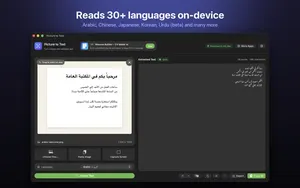
| Read Urdu, Arabic, Persian or other languages | Picture to Text (30+ languages) |
What can I do with the text?
- Clean Up: join broken lines, remove extra spaces and change letter case, with undo.
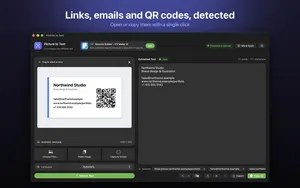
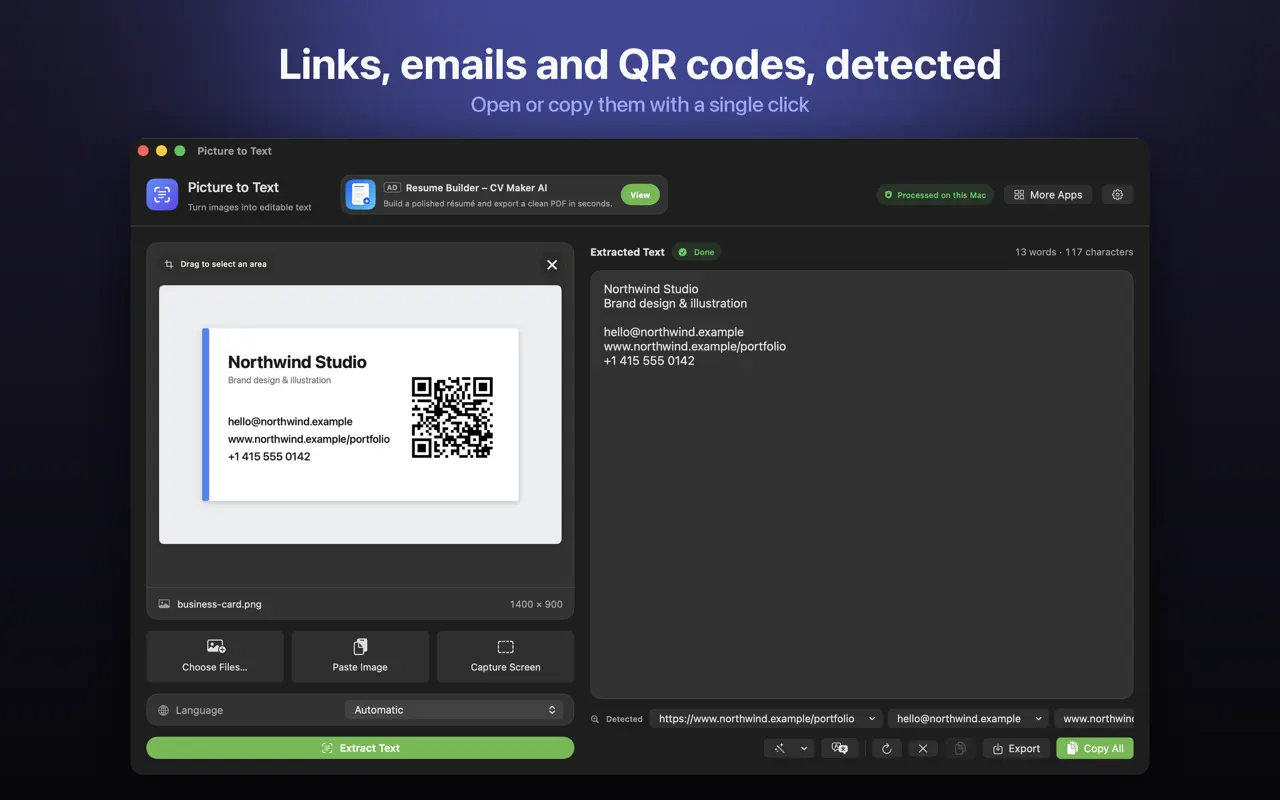
- Detect links, email addresses, phone numbers, QR codes and barcodes, and open or copy them with one click.
- Translate the result on your Mac (macOS 26 or later).
- Count words and characters.
- Export as a .txt file.
Does it upload my images?
No. Picture to Text uses Apple's on-device Vision text recognition. There are no uploads, no accounts and no tracking, and it works offline. Screen Recording permission is used only for screen capture, and only the area you select is captured.
More guides you may find useful:
- Live Text Not Working on Mac? How to Fix It (and Select Text in Any Image)
- How to Convert an Image or Scanned PDF to a Word Document on Mac
- How to Translate Text in an Image or Screenshot on Mac
How Picture to Text helps
- Drop in images or PDFs, paste from the clipboard, or choose several files at once.
- Capture any area of the screen with Shift-Command-2 or from the menu bar.
- Read multi-page scanned PDFs, with each page labelled in the result.
- 30+ languages, including Urdu, Persian, Pashto, Sindhi and Punjabi in beta.
- Clean Up, Detect and Translate: join broken lines, open links, emails, phone numbers, QR codes and barcodes, and translate on macOS 26 or later.
- Private: Apple's on-device Vision framework, no uploads, no account, no tracking, and it works offline.
Download Picture to Text free on the Mac App Store and copy text from anything on your screen.
More Mac guides: copy text from a scanned PDF, screenshot to text with Shift-Command-2 and OCR for Urdu, Arabic and 30+ languages.
How to extract text from an image on Mac with Picture to Text: step by step
- Open Picture to Text. Download Picture to Text - ExtractText from the Mac App Store.
- Add your image. Drag and drop images or PDFs from Finder, paste an image from the clipboard, or choose several files at once.
- Or capture the screen. Press Shift-Command-2, or use the menu bar icon, and drag over any area of the screen.
- Choose the language. Leave it on Automatic, or pick one of 30+ languages.
- Use the text. Edit, clean up, copy, or export the result as a .txt file.
Frequently asked questions
Can a Mac extract text from an image?
Yes. On macOS Monterey and later, Live Text lets you select text in images in Preview, Photos, Quick Look and Safari. Apps like Picture to Text handle batches, PDFs and screen capture.
How do I copy text from a picture on a Mac?
Open the picture in Preview, hover over the text until the cursor changes, drag to select it and press Command-C.
Why can’t I select text in an image in Preview?
Live Text needs macOS Monterey or later and a supported language. Blurry or very small text may also not be recognised.
Can I extract text from many images at once on Mac?
Yes. In Picture to Text you can choose several files at once and get all the text together.
Does Picture to Text work offline?
Yes. It uses Apple’s on-device Vision text recognition and works without an internet connection.
Does Picture to Text upload my images?
No. There are no uploads, no accounts and no tracking. Your images never leave your Mac.
Can I extract only part of an image?
Yes. Drag over part of the image in Picture to Text to extract just that area.
Can I export the text as a file?
Yes. Picture to Text exports the result as a .txt file.
What macOS version does Picture to Text need?
Check the Mac App Store listing for the current requirement. Translation inside the app requires macOS 26 or later.
Can Picture to Text read QR codes?
Yes. It detects QR codes and barcodes, as well as links, emails and phone numbers.
Which languages does Picture to Text support?
30+ languages, including English, Arabic, Chinese, Japanese, Korean, French, German, Spanish and Russian, with Urdu, Persian, Pashto, Sindhi and Punjabi in beta.
Picture to TextDownload free