 Picture to Text guide
How to Translate Text in an Image or Screenshot on Mac
By Muhammad Shahid Khan · · 4 min read
Quick answer
For a few lines, open the image in Preview or Safari, select the text with Live Text, Control-click and choose Translate. For long documents, other apps or languages Live Text does not read, extract the text first with Picture to Text, which can also translate the result on your Mac on macOS 26 or later. Check names, numbers and dates against the original.
Picture to TextCopy Text from Images & PDFs · Free on the Mac App StoreDownload free →| A few lines | Live Text > Control-click > Translate |
|---|---|
| Long or scanned documents | Extract with OCR, then translate |
| In Picture to Text | Translate on your Mac (macOS 26 or later) |
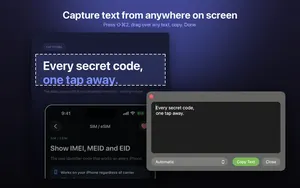
| Any app | Capture the area with Shift-Command-2 |
| Official use | Get a certified translation |
A screenshot of a message in Arabic, a scanned letter in German, a Chinese product label, a slide in a language you do not speak. On a Mac you can translate all of them without retyping. The right method depends on how much text there is and where it is.
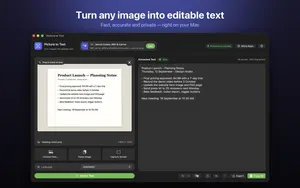
I build Picture to Text - ExtractText, a free Mac OCR app that reads images, PDFs and any area of the screen on your Mac, and the screenshots here come from it. If you want to try it as you read, get Picture to Text on the Mac App Store.
Method 1: Live Text Translate
- Open the image in Preview, Photos or Safari.
- Drag over the text with the pointer to select it.
- Control-click (right-click) and choose Translate.
Quick for a sentence or two. It needs Live Text turned on, works only in apps that support it, and only for the languages Live Text reads. If you cannot select text, see Live Text not working on Mac.
Method 2: extract the text, then translate
For anything longer, or anywhere Live Text does not reach:
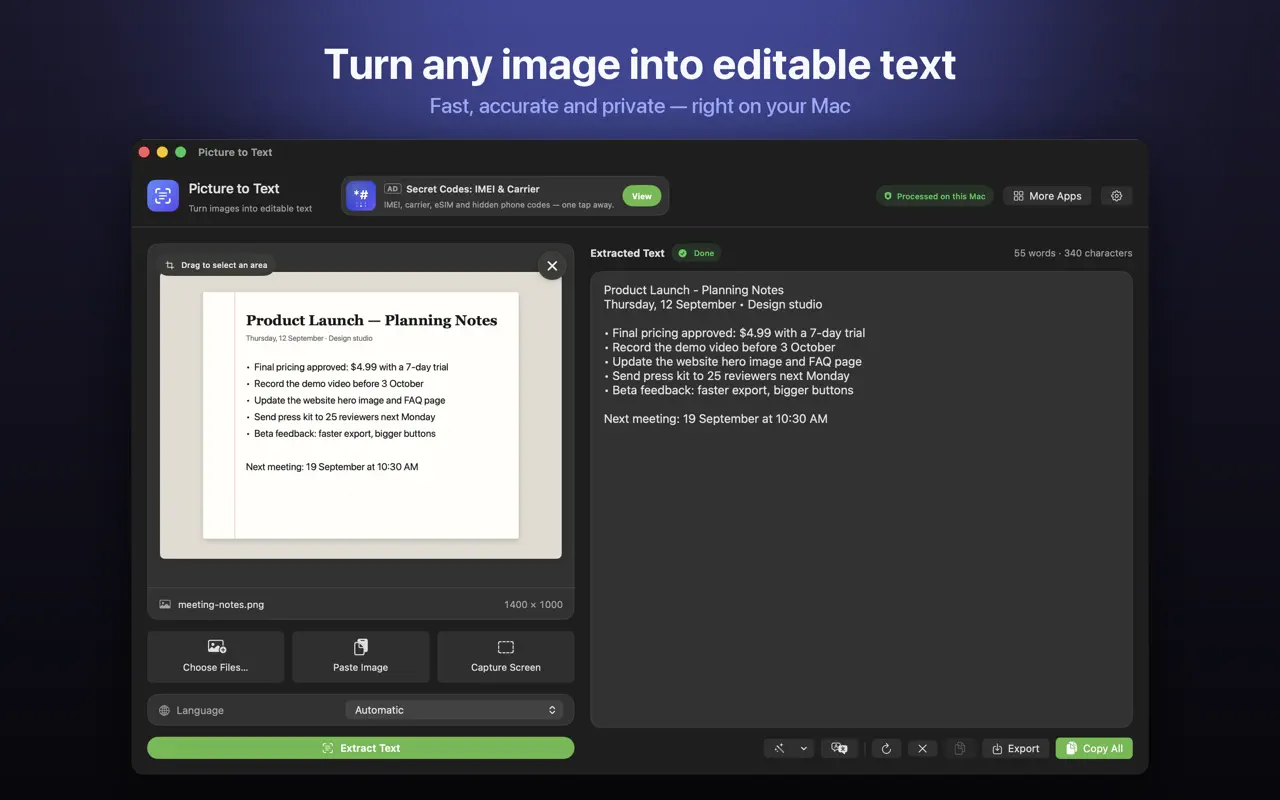
- Drop the image or PDF into Picture to Text, or press Shift-Command-2 to capture part of the screen.
- Check the text and fix any misread words.
- Use Clean Up to join broken lines, so the translator sees whole sentences.
- Use Translate in Picture to Text (macOS 26 or later), or copy the text into the translator you prefer.
Which method should I use?
| Situation | Best method |
|---|---|
| A line in a photo or screenshot | Live Text Translate |
| A full page or multi-page scanned PDF | Extract with Picture to Text, then translate |
| Text in an app without Live Text | Shift-Command-2, then translate |
| Urdu, Persian, Punjabi and other languages Live Text misses | Picture to Text (beta languages), then translate |
How do I translate right-to-left languages like Arabic and Urdu?
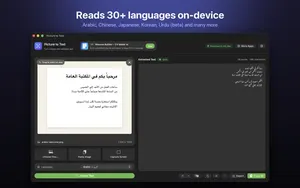
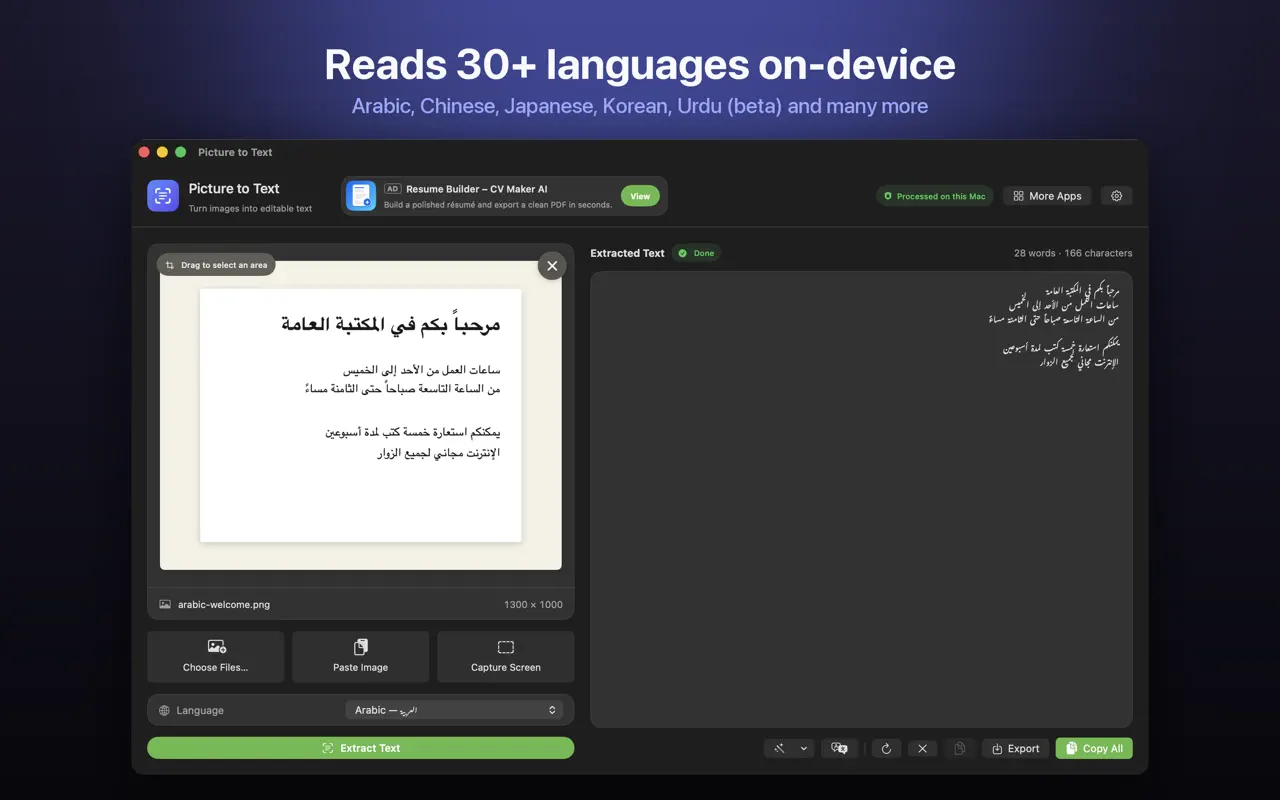
Right-to-left scripts depend on small dots that are easily lost, so start from the sharpest image you can. Choose the language manually rather than Automatic, capture one column at a time, and check dotted letters after extraction. Picture to Text reads Arabic, and Urdu, Persian, Pashto, Sindhi and Punjabi in beta. More in OCR for Urdu, Arabic and Persian on Mac.
Is translation on Mac private?
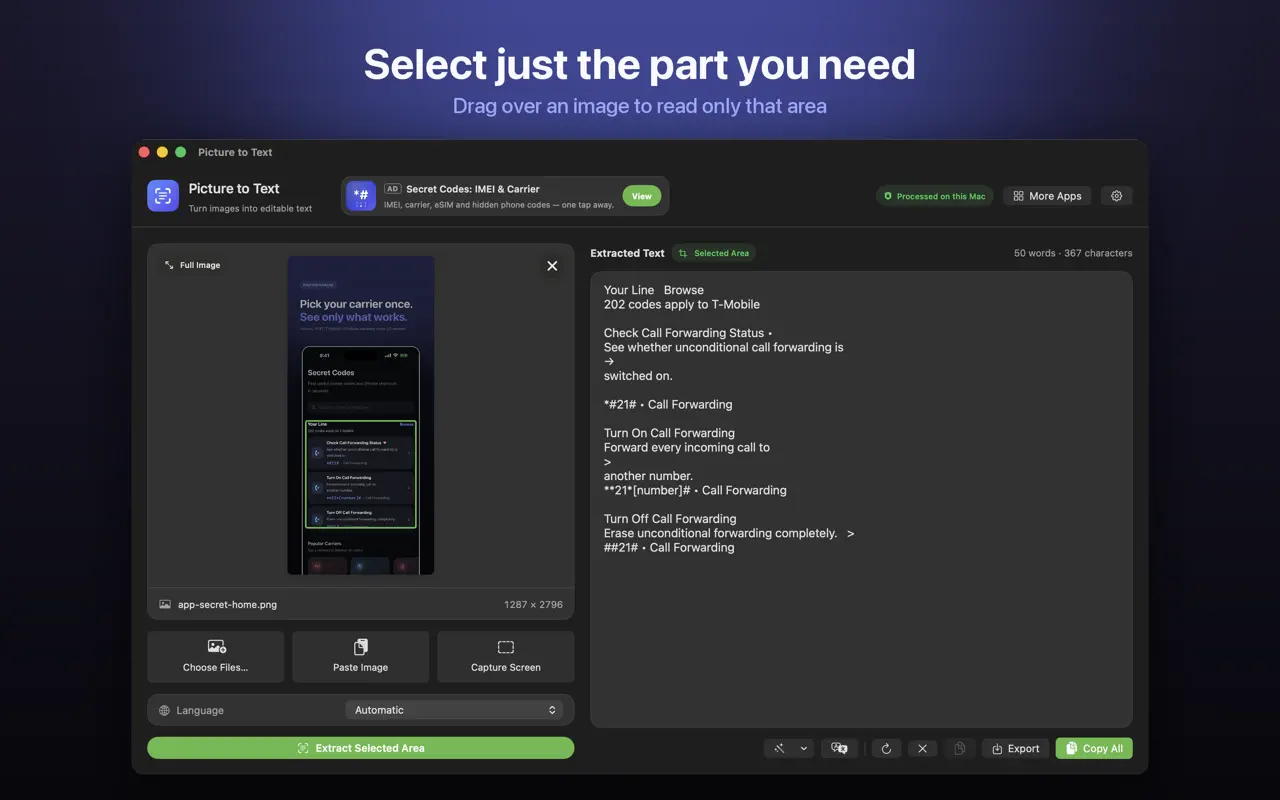
Text recognition in Picture to Text runs entirely on your Mac, with no uploads. Apple's translation can run on-device for downloaded languages. Online translators send your text to a server, so think about what you are pasting, especially letters, medical documents or ID.
Tips for accurate translations
- Translate whole sentences, not fragments split across lines.
- Check numbers, names and dates against the original.
- For legal or official use, get a certified translation. Machine translation is for understanding.
On iPhone instead? See how to translate text from an image on iPhone.
How Picture to Text helps
- Drop in images or PDFs, paste from the clipboard, or choose several files at once.
- Capture any area of the screen with Shift-Command-2 or from the menu bar.
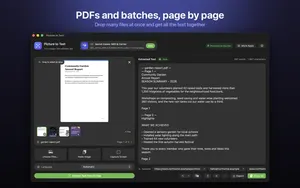
- Read multi-page scanned PDFs, with each page labelled in the result.
- 30+ languages, including Urdu, Persian, Pashto, Sindhi and Punjabi in beta.
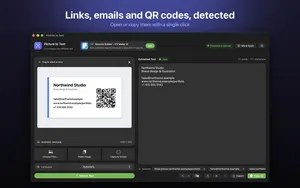
- Clean Up, Detect and Translate: join broken lines, open links, emails, phone numbers, QR codes and barcodes, and translate on macOS 26 or later.
- Private: Apple's on-device Vision framework, no uploads, no account, no tracking, and it works offline.
Download Picture to Text free on the Mac App Store and copy text from anything on your screen.
Frequently asked questions
How do I translate text in an image on Mac?
Select the text with Live Text in Preview, Photos or Safari, Control-click and choose Translate. For long text, extract it first with an OCR app.
How do I translate a screenshot on Mac?
Open it in Preview and use Live Text Translate, or capture it with Picture to Text and translate the extracted text.
Can I translate a scanned PDF on Mac?
Yes. Extract the text from every page with Picture to Text, clean it up and translate it.
Does Picture to Text translate?
Yes, on macOS 26 or later it can translate the extracted text on your Mac.
Why is Translate missing when I Control-click an image?
The text was not selected with Live Text, Live Text is off, or the language is not supported.
Can I translate Arabic or Urdu text in an image on Mac?
Yes. Picture to Text reads Arabic, and Urdu and Persian in beta, so you can extract and then translate the text.
Is image translation on Mac private?
Recognition in Picture to Text is on-device. Apple’s translation can be on-device for downloaded languages. Online translators upload text.
Can I translate text in any app on Mac?
Yes. Capture the area with Shift-Command-2 using Picture to Text, then translate the result.
Why is my translation wrong?
Usually misread characters or broken sentences. Use a sharper image and join lines before translating.
Can I use machine translation for official documents?
Use it to understand them, but get a certified translation for official purposes.
Does Picture to Text work offline?
Text recognition works fully offline on your Mac.
Picture to TextDownload free