 Picture to Text guide
How to Copy Text From a Scanned PDF on Mac
By Muhammad Shahid Khan · · 4 min read
Quick answer
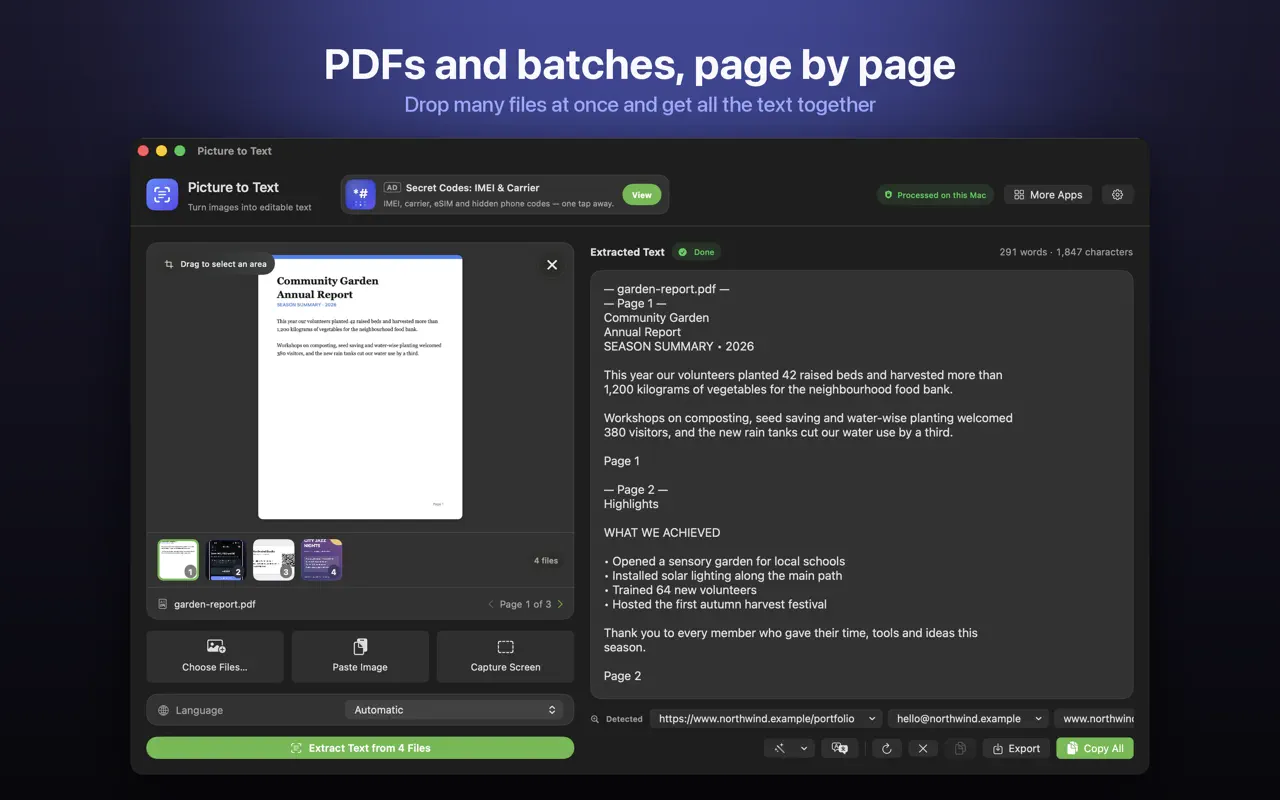
A scanned PDF is a set of images of pages, so there is no text to select. To copy it, run OCR on the PDF. In Picture to Text, drag the PDF in: it reads each page on your Mac, shows progress page by page, labels each page in the result, and lets you copy or export all the text.
Picture to TextCopy Text from Images & PDFs · Free on the Mac App StoreDownload free →You open a PDF, try to copy a paragraph, and nothing selects, or the whole page highlights as one block. That is the sign of a scanned PDF. Here is why it happens and how to get the text out.
Why can't I select text in some PDFs?
There are two kinds of PDF:
- Digital PDFs are created from a document (for example, exported from Word). They contain real text you can select, search and copy.
- Scanned PDFs are created by a scanner or a phone camera. Each page is a picture. Unless OCR has been applied, there is no text layer.
Quick test: open the PDF in Preview and press Command-F to search for a word you can see on the page. If it finds nothing, the PDF has no text layer.
How do I get text from a scanned PDF?
You need OCR, optical character recognition, to read the page images and turn them into text. Picture to Text does this on your Mac:
- Import multi-page PDFs, including scanned documents.
- See each page as it is read, so you know how far along it is.
- Pages are clearly labelled in the result, so you can find where each passage came from.
Can I extract just one part of a page?
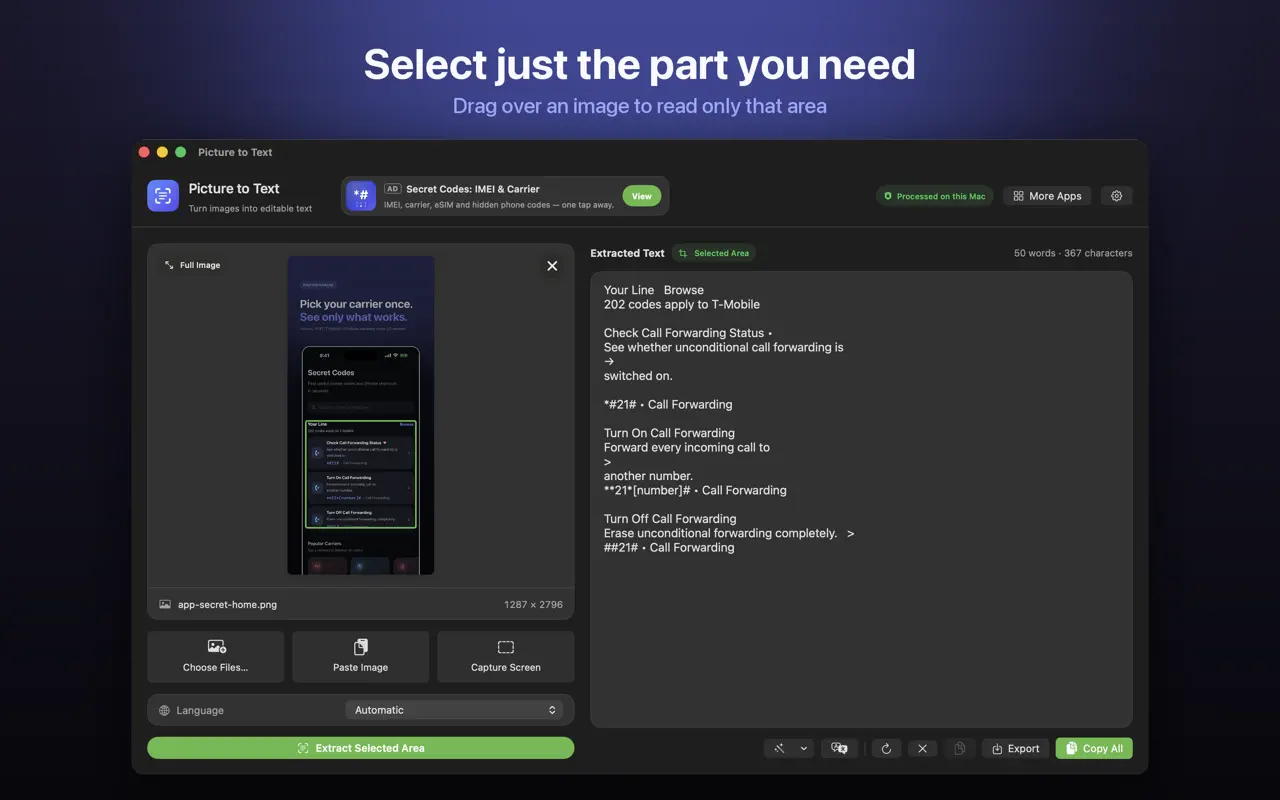
Yes. If you only need one table, paragraph or address, drag over that part of the image to extract only that area. It saves cleaning up text you did not want.
How do I fix the formatting?
Text from scanned pages keeps the original line breaks, so paragraphs come out as short broken lines. Use Clean Up to join broken lines, remove extra spaces and change letter case, with undo if you change your mind. Then copy the text or export a .txt file.
Is it safe for confidential PDFs?
Scanned PDFs are often contracts, bank statements, medical letters or ID documents. Online "PDF to text" converters ask you to upload them. Picture to Text uses Apple's on-device Vision text recognition. There are no uploads, no accounts and no tracking, and it works offline.
What gives the best results?
- Higher scan resolution. 300 dpi is a good standard for text.
- Straight pages. Skewed scans reduce accuracy.
- Clean scans. Shadows, stains and handwriting over printed text cause errors.
- The right language. Leave it on Automatic, or pick the document's language if detection struggles.
Always check figures such as amounts, dates and account numbers against the original.
More guides you may find useful:
- How to Convert an Image or Scanned PDF to a Word Document on Mac
- How to Translate Text in an Image or Screenshot on Mac
- How to Extract Links, Emails and Phone Numbers From an Image on Mac
How Picture to Text helps
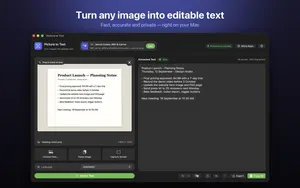
- Drop in images or PDFs, paste from the clipboard, or choose several files at once.
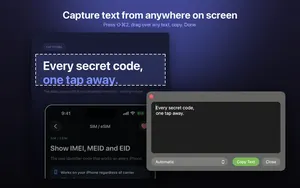
- Capture any area of the screen with Shift-Command-2 or from the menu bar.
- Read multi-page scanned PDFs, with each page labelled in the result.
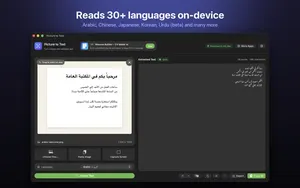
- 30+ languages, including Urdu, Persian, Pashto, Sindhi and Punjabi in beta.
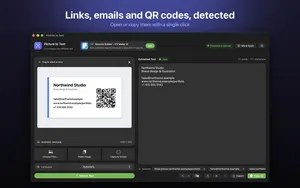
- Clean Up, Detect and Translate: join broken lines, open links, emails, phone numbers, QR codes and barcodes, and translate on macOS 26 or later.
- Private: Apple's on-device Vision framework, no uploads, no account, no tracking, and it works offline.
Download Picture to Text free on the Mac App Store and copy text from anything on your screen.
How to copy text from a scanned PDF on Mac: step by step
- Check the PDF. Try selecting text in Preview. If you can only select the whole page as an image, it is a scanned PDF.
- Open Picture to Text. Launch Picture to Text on your Mac.
- Drop the PDF in. Drag the PDF from Finder into the app. Multi-page PDFs are supported.
- Wait for each page. Each page is read in turn and labelled in the result.
- Clean up and export. Join broken lines with Clean Up, then copy the text or export a .txt file.
Frequently asked questions
Why can’t I copy text from a PDF on my Mac?
The PDF is probably scanned, which means each page is an image with no text layer. You need OCR to extract the text.
How do I know if a PDF is scanned?
Open it in Preview and press Command-F to search for a word you can see. If nothing is found, it has no text layer.
Can Preview OCR a scanned PDF?
Live Text can select text in images in Preview, but for full multi-page extraction with page labels and export, an app like Picture to Text is faster.
Can Picture to Text handle multi-page PDFs?
Yes. It imports multi-page PDFs, including scanned documents, reads each page in turn and labels each page in the result.
Does Picture to Text upload my PDF?
No. Everything runs on your Mac with Apple’s on-device Vision text recognition. There are no uploads or accounts.
Can I extract text from only part of a PDF page?
Yes. Drag over part of an image to extract only that area.
How do I fix broken lines in the extracted text?
Use Clean Up in Picture to Text to join broken lines and remove extra spaces.
Can I save the extracted text?
Yes. Copy it or export it as a .txt file.
What scan resolution is best for OCR?
Around 300 dpi gives good results for normal printed text.
Does it work offline?
Yes. Picture to Text works offline.
Picture to TextDownload free