 Picture to Text guide
Screenshot to Text on Mac: Capture Any Area With Shift-Command-2
By Muhammad Shahid Khan · · 4 min read
Quick answer
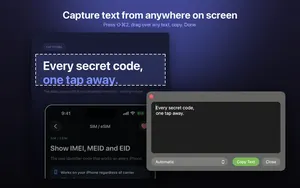
With Picture to Text installed, press Shift-Command-2 (or use the menu bar icon) and drag over any area of the screen. The text in that area appears instantly in a floating window, ready to copy. It works on videos, apps that block copying, images and PDFs, and only the area you select is captured.
Picture to TextCopy Text from Images & PDFs · Free on the Mac App StoreDownload free →Some text on your screen cannot be copied: words in a video, a locked PDF, a dialog box, an app interface, a slide in a video call, or text inside an image. Normally you would take a screenshot, open it, and then try to select the text. Picture to Text turns that into one shortcut.
I build Picture to Text - ExtractText, a free Mac OCR app that reads images, PDFs and any area of the screen on your Mac, and the screenshots here come from it. If you want to try it as you read, get Picture to Text on the Mac App Store.
How does Shift-Command-2 work?
- Press Shift-Command-2 anywhere on your Mac.
- Drag a box over the text you want.
- The text appears in a floating result window with a language picker and a Copy Text button.
The shortcut sits next to the familiar macOS screenshot shortcuts (Shift-Command-3, 4 and 5), so it is easy to remember. You can also start a capture from the menu bar icon.
What can I capture text from?
- Video: a paused frame of a tutorial, lecture or subtitle.
- Video calls: a shared slide or a link someone showed.
- Apps that block copying: error dialogs, settings screens and some web apps.
- Images and PDFs without opening them in another app.
- Remote desktops and virtual machines, where the clipboard is not shared.
How do I set it up?
- Install Picture to Text from the Mac App Store.
- The first time you capture, macOS asks for Screen Recording permission. Grant it in System Settings > Privacy & Security > Screen & System Audio Recording.
- Press Shift-Command-2 and drag.
Is screen capture private?
Screen Recording permission sounds alarming, so here is exactly what Picture to Text does with it. It is used only for screen capture, and only the area you select is captured. Recognition runs on your Mac with Apple's Vision framework. There are no uploads, no accounts and no tracking.
What else does the result window do?
- Language picker: switch language if the text is not in English.
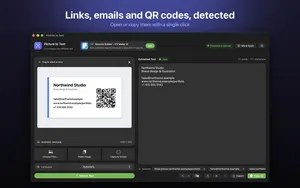
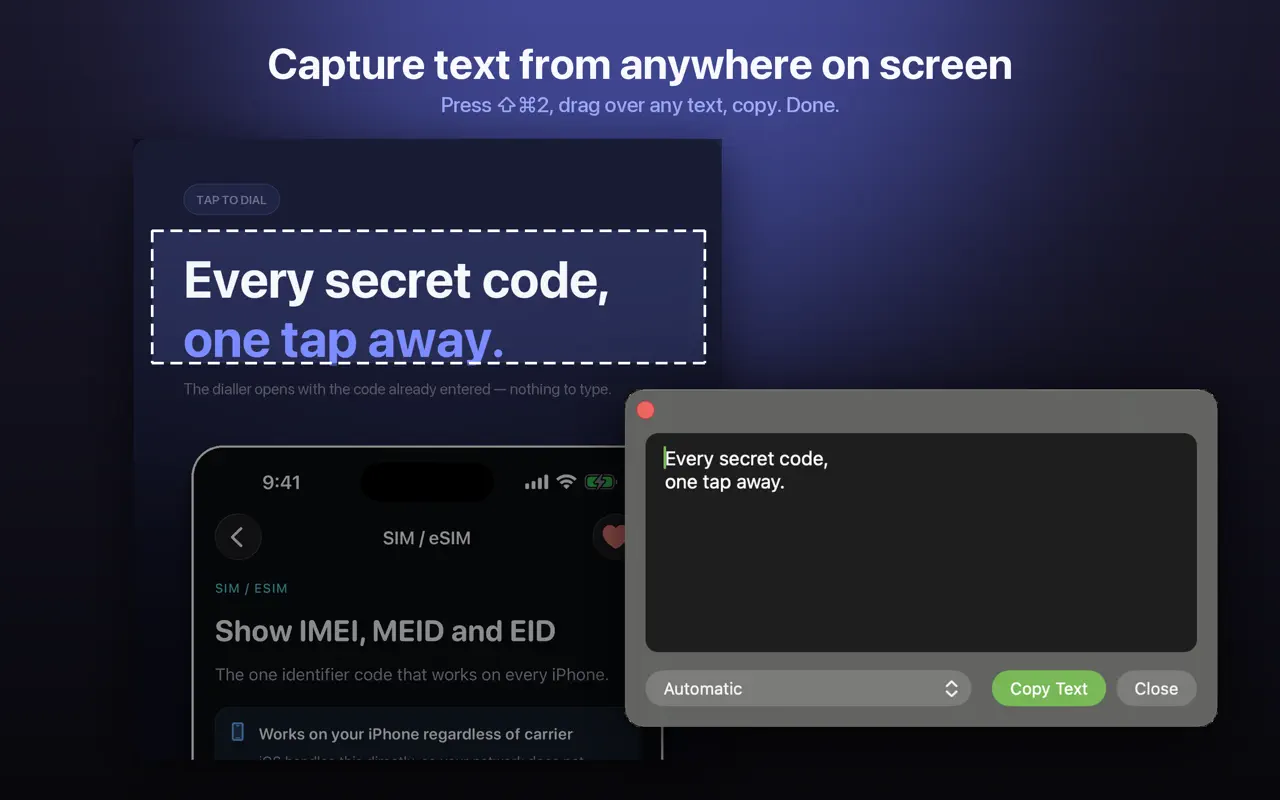
- Detected items: links, emails, phone numbers, QR codes and barcodes, which you can open or copy with one click.
- Recent results in the menu bar, so you can grab something you captured earlier.
- Keyboard shortcuts, Light and Dark Mode, and VoiceOver labels.
Tips for clean results
- Select just the text, with a little margin. Leave out icons and images.
- Make small text bigger first (Command-plus in most apps) for better accuracy.
- Pause videos on a sharp frame before capturing.
More guides you may find useful:
- How to Copy Text From a Video or Video Call on Mac (YouTube, Zoom, Teams)
- How to Extract Links, Emails and Phone Numbers From an Image on Mac
- Live Text Not Working on Mac? How to Fix It (and Select Text in Any Image)
How Picture to Text helps
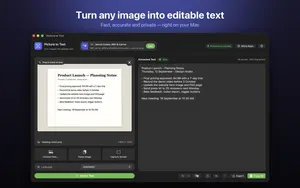
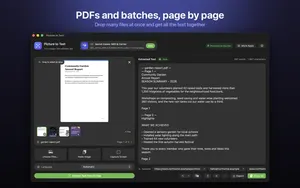
- Drop in images or PDFs, paste from the clipboard, or choose several files at once.
- Capture any area of the screen with Shift-Command-2 or from the menu bar.
- Read multi-page scanned PDFs, with each page labelled in the result.
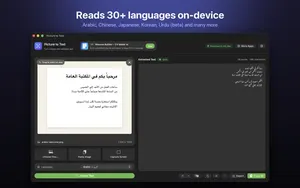
- 30+ languages, including Urdu, Persian, Pashto, Sindhi and Punjabi in beta.
- Clean Up, Detect and Translate: join broken lines, open links, emails, phone numbers, QR codes and barcodes, and translate on macOS 26 or later.
- Private: Apple's on-device Vision framework, no uploads, no account, no tracking, and it works offline.
Download Picture to Text free on the Mac App Store and copy text from anything on your screen.
Need a QR code from your screen? See how to scan a QR code on Mac.
Frequently asked questions
How do I copy text from my screen on a Mac?
With Picture to Text, press Shift-Command-2 and drag over the text. It appears in a floating window ready to copy.
Can I copy text from a video on Mac?
Yes. Pause the video on a clear frame, press Shift-Command-2 and drag over the text.
Why does Picture to Text need Screen Recording permission?
macOS requires it for any app that captures part of the screen. Picture to Text uses it only for screen capture, and only the area you select is captured.
Does Picture to Text record my screen?
No. It only captures the area you select when you start a capture.
Can I change the language of captured text?
Yes. The floating result window has a language picker, or you can leave it on Automatic.
Where can I find previous captures?
The menu bar icon shows your recent results.
Does screen capture work offline?
Yes. Text recognition runs on your Mac.
Can I copy text from an app that blocks copying?
Yes. Screen capture reads the text from what is shown on the screen, so it works even where normal copying is blocked.
Can I start a capture without the keyboard shortcut?
Yes. Use the menu bar icon.
Is Shift-Command-2 a built-in macOS shortcut?
No. macOS uses Shift-Command-3, 4 and 5 for screenshots. Shift-Command-2 is provided by Picture to Text.
Picture to TextDownload free